Security Overview
Web UI Permissions
archivebox config --set PUBLIC_INDEX=False      # require login to access the list of Snapshots
archivebox config --set PUBLIC_ADD_VIEW=False   # require log-in to submit new URLs for archiving
archivebox config --set PERMISSIONS=private     # default new snapshots to login-required (was: PUBLIC_SNAPSHOTS=False)

archivebox manage [createsuperuser|changepassword] # create/modify admin UI users
See [[Setting Up Authentication]] for more…
ArchiveBox Use-Cases

Archiving Public Content Only ⭐️ [Default, recommended for most people]
This is the default (lax) mode, intended for archiving public (non-secret) URLs without authenticating the headless browser. This is the mode used if you’re archiving news articles, audio, video, etc. browser bookmarks to a folder published on your webserver. This allows you to access and link to content on http://your.archive.com/archive... after the originals go down.
The default mode should not be used for archiving entire browser history or authenticated private content like Google Docs, paywalled content, invite-only subreddits, private photo share urls, etc.
# (these are the defaults)
archivebox config --set ARCHIVEDOTORG_ENABLED=True   # see https://plugins.archivebox.io/#archivedotorg
archivebox persona create public
archivebox add --persona=public 'https://example.com'
Archiving Content Behind Log-Ins 🚨 [Advanced users only]
ArchiveBox is able to archive content that requires authentication or cookies, but it comes with some caveats. Create dedicated logins for archiving to access paywalled content, private forums, LAN-only content, etc. then share them with ArchiveBox via Chrome profile + cookies.txt file.
archivebox config --set ARCHIVEDOTORG_ENABLED=False
archivebox persona create --import=chrome personal
archivebox add --persona=personal 'https://members.example.com/'
To get started, import a dedicated browser profile into a persona. A persona keeps its Chrome profile and cookies.txt together and applies the same identity consistently across extractors.
➡️ For full instructions on setting up a Chromium user profile see here: https://github.com/ArchiveBox/ArchiveBox/wiki/Chromium-Install#setting-up-a-chromium-user-profile
If you’re importing private links or authenticated content, you probably don’t want to share your archive folder publicly on a webserver, so don’t follow the [[Publishing Your Archive]] instructions unless you are only serving it on a trusted LAN or have some sort of authentication in front of it. Make sure to point ArchiveBox to an output folder with conservative permissions, as it may contain archived content with secret session tokens or pieces of your user data. You may also wish to encrypt the archive using an encrypted disk image or filesystem like ZFS as it will contain all requests and response data, including session keys, user data, usernames, etc.
⚠️ Things to watch out for: ⚠️
any cookies / secret state present in a Chrome user profile or
cookies.txtfile may be reflected in server responses and saved in the Snapshot output (e.g. inheadersextractor output) — visible in cleartext to anyone viewing the Snapshot. Don’t use your personal Chrome profile for archiving or people viewing your archive can then authenticate as you.any secret tokens embedded in URLs (e.g. secret invite links, Google Doc URLs, etc.) will be visible on
archive.orgas the URLs are not filtered when saving to it. Disable submitting to Archive.org entirely withARCHIVEDOTORG_ENABLED=False.the domain portion in archived URLs is sent to a favicon service in order to retrieve an icon more reliably than a janky internal implementation would be able to (if leaking domains is a concern, you can change the
FAVICON_PROVIDERor disable favicon fetching entirely withFAVICON_ENABLED=False).viewing malicious archived JS could allow an attacker to access your other archive items + the admin interface — use the default
SERVER_SECURITY_MODE=auto(*.localhostuses isolated replay subdomains and other hosts use one-domain/no-JS raw replay), or disable risky extractors entirely withWGET_ENABLED=FalseandDOM_ENABLED=False. Plugins that need their own trusted viewer can opt in with an explicitfull.htmlpreview template; ArchiveBox applies the no-JS policy to all other raw archived HTML without maintaining a plugin whitelist.
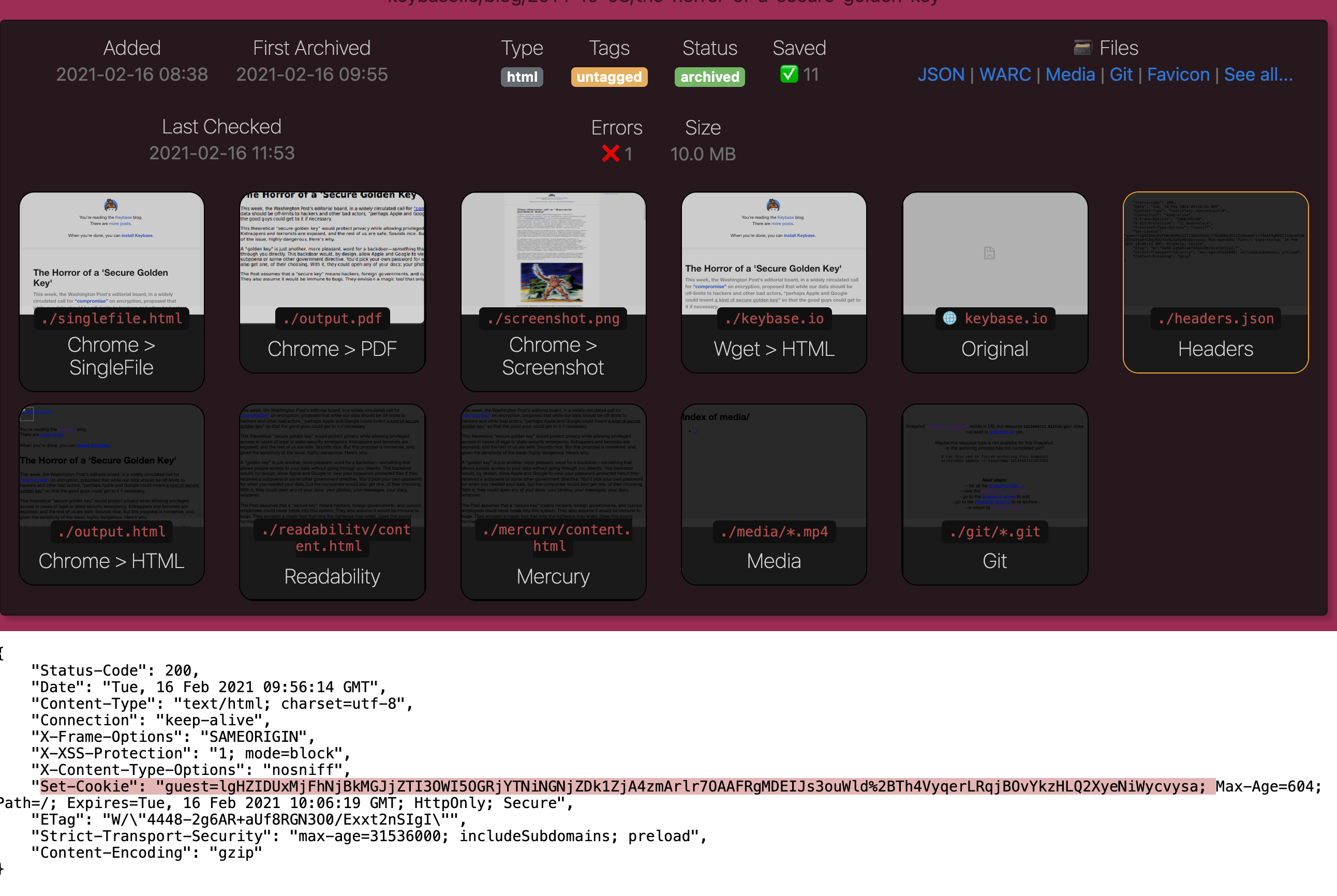
An example of a session cookie reflected in headers.json visible in the archive.

Publishing
[!CAUTION] Re-hosting untrusted archived content on the same origin as an authenticated application can compromise that application.
Make sure you understand the dangers of hosting untrusted HTML/JS/CSS. The default SERVER_SECURITY_MODE=auto uses isolated subdomains with full replay on *.localhost, and a one-domain no-JS replay policy on ordinary public or LAN hostnames. Choose safe-subdomains-fullreplay only when wildcard DNS and TLS are configured; it separates admin, web, and API control-plane origins from replay content and gives each Snapshot its own replay subdomain.
Do not serve ArchiveBox from a shared subdirectory such as myapps.example.com/archivebox/; it cannot provide the required origin isolation.
Published archives automatically include a robots.txt Disallow: / to block search engines from indexing them. You may still wish to publish your contact info in the index footer though using FOOTER_INFO so that you can respond to any DMCA and copyright takedown notices if you accidentally rehost copyrighted content.
⚠️ Make sure to read all the warnings above about the dangers of exposing Chrome profile data, cookies, secret tokens in URLs, and the risks of viewing archived JS on a shared origin before publishing your archive.
More info:
https://github.com/ArchiveBox/ArchiveBox/wiki/Publishing-Your-Archive
https://github.com/ArchiveBox/ArchiveBox/wiki/Publishing-Your-Archive#security-concerns
https://github.com/ArchiveBox/ArchiveBox/wiki/Publishing-Your-Archive#copyright-concerns
Run ArchiveBox as an unprivileged user
[!NOTE] Use
docker compose run --rm archivebox ...for normal one-shot CLI commands.docker compose exec archivebox ...is also supported against a running container; if it starts as root, ArchiveBox drops to the dedicatedarchiveboxaccount before operating on the collection.
ArchiveBox drops privileges to the collection owner when it starts as root and can do so safely, including in the official Docker image. Do not bypass that boundary or force runtime dependencies to stay privileged:
Browser sandboxing cannot provide its normal protection when the browser itself runs as root
All dependencies will be run as root, if any of them have a vulnerability that’s exploited by sites you’re archiving you’re opening yourself up to full system compromise
ArchiveBox does lots of HTML parsing, filesystem access, and shell command execution. A bug in any one of those subsystems could potentially lead to deleted/damaged data on your hard drive, or full system compromise unless restricted to a user that only has permissions to access the directories needed
Do you really trust a project created by a Github user called
@pirate😉? Why give a random program off the internet root access to your entire system? (I don’t have malicious intent, I’m just saying in principle you should not be running random Github projects as root)
ArchiveBox creates and drops privileges to a dedicated archivebox account when run as root on Linux. Existing non-root users can run it directly:
mkdir -p ~/archivebox/data
cd ~/archivebox/data
archivebox init
archivebox install

Output Folder
Database
The ArchiveBox database is an unencrypted, uncompressed SQLite3 index.sqlite3 file on disk, and such does not require an authenticated admin SQL login to access (like PostgreSQL/MySQL would). Make sure to protect your database file adequately as anyone who can read it can read your entire collection contents. Passwords for the admin users are stored as salted and PBKDF2 hashed strings in the auth_user table.
More info:
Filesystem
How much are you planning to archive? Only a few bookmarked articles, or thousands of pages of browsing history a day? If it’s only 1-50 pages a day, you can probably use a normal folder on your hard drive, but at higher volume you may want a compressed/deduplicated/encrypted filesystem like ZFS. Other distributed/networked/checksummed filesystems reported to work include SMB, NFS, Ceph, Unraid, and BTRFS. The database and config must remain on a local filesystem with reliable FSYNC. Current Snapshot directories are sharded under archive/users/<user>/snapshots/<date>/<domain>/<uuid>/, avoiding the old single-directory scaling limit.
Purging entries
archivebox remove --yes URL deletes matching Snapshot rows and schedules their Snapshot directories for cleanup through the normal state-machine path. The legacy --delete flag is accepted only for CLI compatibility and does not change that behavior. Original imports and operational history may still appear in sources/, logs/, or an external search backend; remove those separately if your goal is to erase every trace of a URL.
Permissions
Consider what permissioning to apply to your archive folder carefully. Limit access to the fewest possible users by checking folder ownership and setting OUTPUT_PERMISSIONS accordingly. Generally the index.sqlite3 file, archive/ folder, and ArchiveBox.conf file must all be owned and writable by the archivebox user or a dedicated non-root user.
When running with Docker, the entrypoint uses explicit PUID/PGID values when supplied, otherwise the existing non-root owner of the mounted data directory or the image’s archivebox user.
More info: